TLDR:
disable unknown USB device -> disable wifi -> hibernate -> plug off power cable -> turn on laptop –> enable wifi
WiFi card: Intel(R) Wireless-AC 9560 160MHz
Errors:
Error (status): This device cannot start. (Code 10)
Error (status): Windows has stopped this device because it has reported problems.
(Code 43)
When fail all methods that you try from internet to turn on Wi-Fi try this (for me works on ASUS ZenBook):
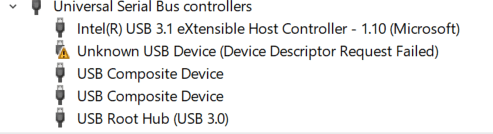
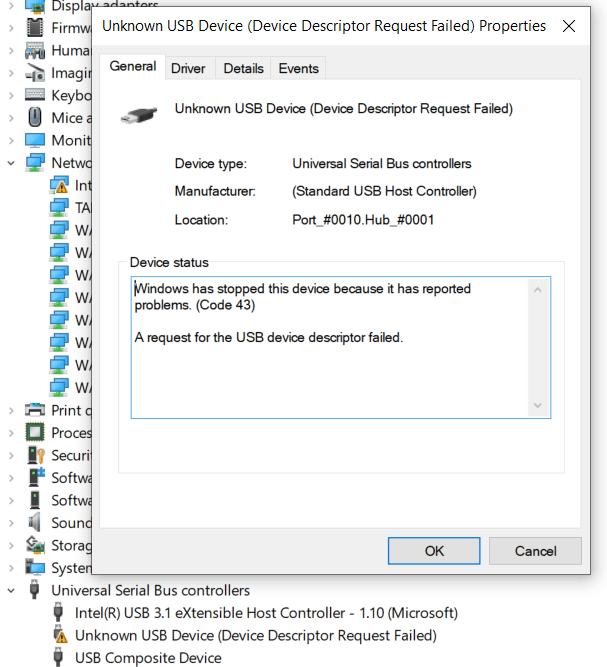
Go to Device Manager -> Universal Serial Bus controllers -> right click on Unknown USB Device (Device Descriptor Request Failed) -> Disable device
Error: Windows has stopped this device because it has reported problems. (Code 43)
Go to Device Manager -> Network Adapters -> right click on your wifi device (Intel(R) Wireless-AC 9560 160MHz in my case) -> Disable device
Error (status): This device cannot start. (Code 10)
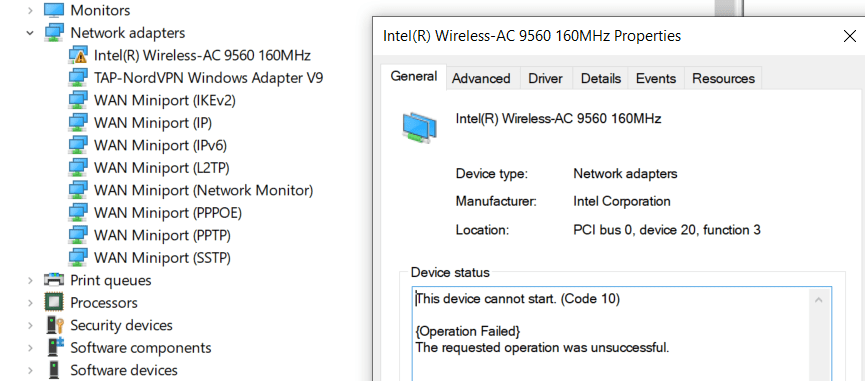
Error (status): This device cannot start. (Code 10)
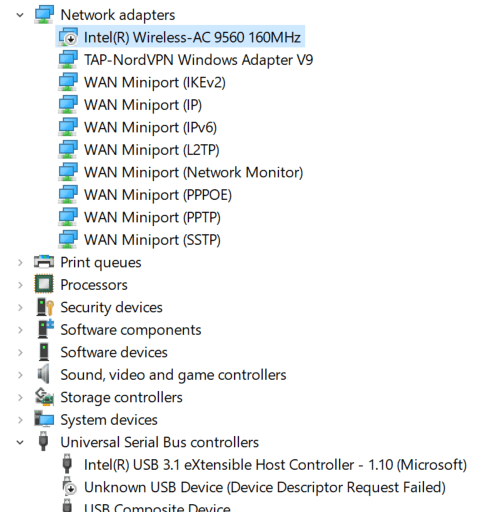
Next Hibernate system.
Then unplug the power cord, if connected.
And next turn on system and once again go to device manager. Then just turn on the network device and finally the Wi-Fi should work:
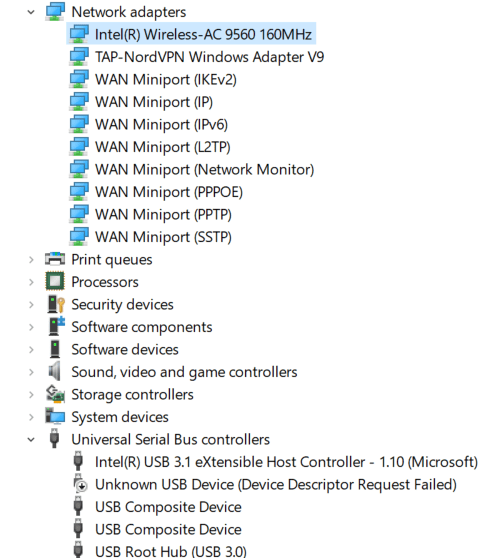
I bet that’s some kind of power management problem.
And in my case problem is on Windows 10, maybe update to win 11 will solve it.
 Karol memo
Oh. My. God. I’ve been catching this error spontaneously for a year, and only solution I was able to find was complete Windows reinstall. This weird but effective procedure saved me tons of time! Thanks a million!!!
LikeLiked by 1 person
I’m glad it was useful to you. In my case, after updating to Win 11 and cleaning the system, sometimes this one error with WiFi appears, but the procedure always works and fixes the error 🙂
LikeLike